
Download Windows Subsystem for Android (WSA) – Windows Subsystem for Android, WSA, Android apps on Windows, run Android apps, install Android apps, Windows 11, mobile app, APK, Uptodown, Amazon App Store, sideloading, Android emulator
Overview
Windows Subsystem for Android (WSA) is a native integration tool developed by Microsoft that enables users to run Android applications directly on Windows 11. Designed to bridge the gap between mobile and desktop ecosystems, WSA provides an emulation environment where Android apps can operate with minimal performance overhead. This capability allows users to access a broad range of Android-exclusive tools, games, and services without relying on third-party emulators or virtual machines.
The app addresses a growing demand for cross-platform compatibility, particularly among developers, power users, and tech enthusiasts who require seamless access to Android-based applications. By offering a lightweight, deeply integrated solution, WSA enhances the functionality of Windows 11, transforming it into a more versatile computing platform. It is especially valuable for users who depend on specific Android apps not available natively on Windows.
Although the developer did not provide additional technical details about the underlying architecture, WSA is known to leverage the Windows Subsystem for Linux (WSL) foundation, suggesting optimized performance and system-level integration. Real-world use cases include using Android messaging apps, accessing social media platforms, playing mobile games, or testing Android applications in a desktop environment. Its presence in the app ecosystem underscores Microsoft’s commitment to expanding Windows’ app compatibility beyond traditional desktop software.
Key Features & Functionality
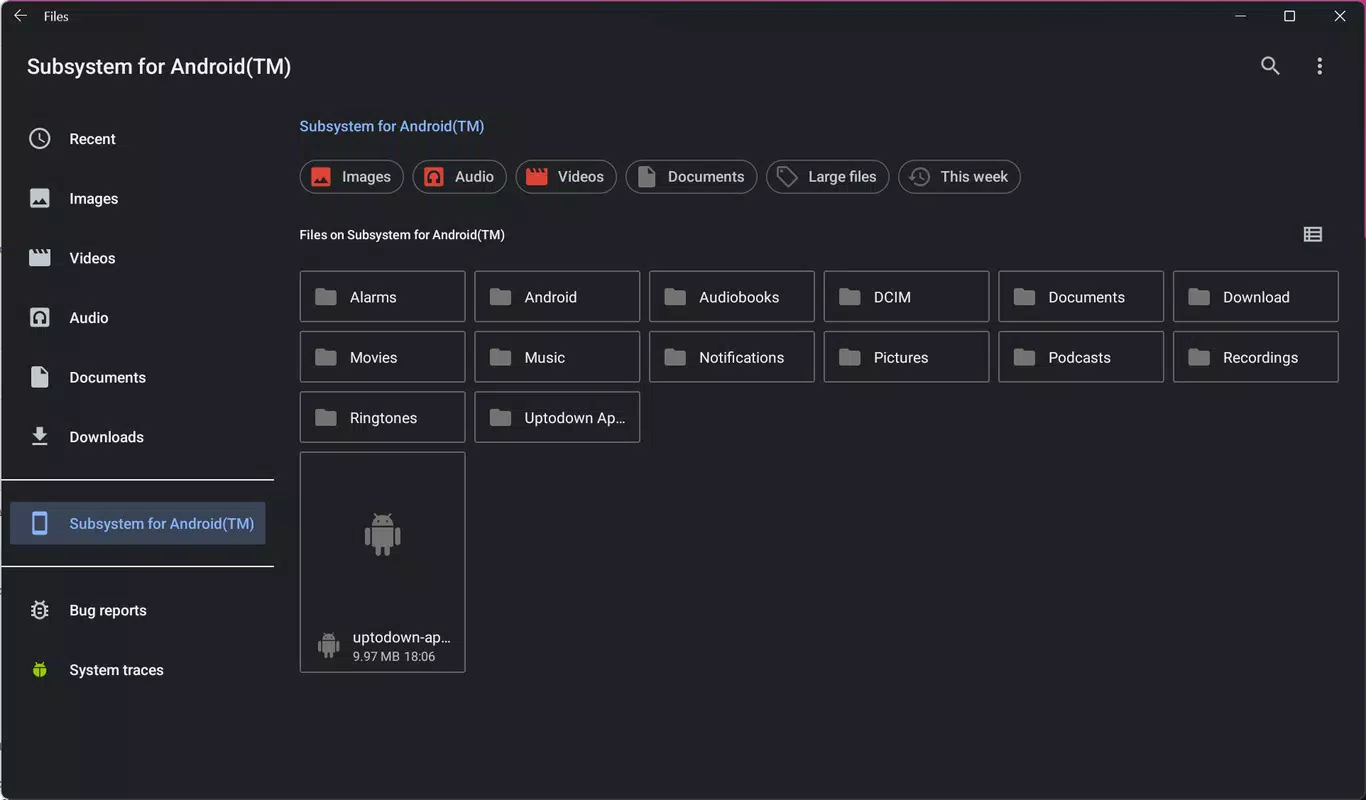
- Native Android App Execution – WSA allows Android apps to run directly within Windows 11, appearing as standard desktop applications with full access to system resources and file systems.
- Amazon App Store Integration – The platform officially supports the Amazon App Store, which can be installed via the Microsoft Store, providing access to a curated selection of Android apps.
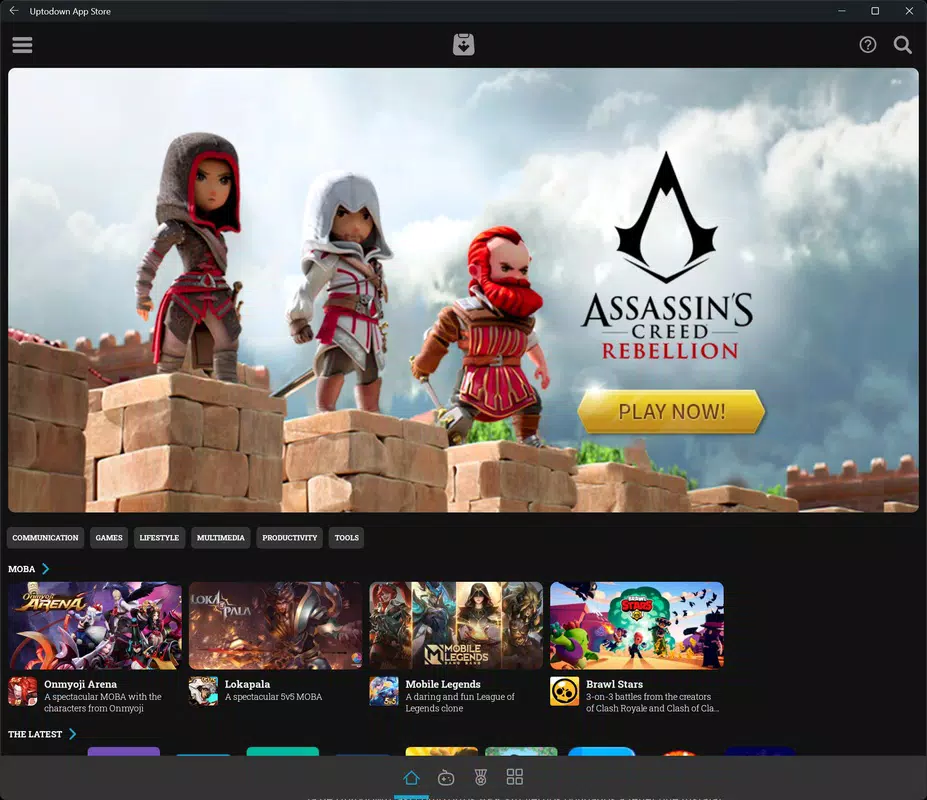
- Sideloading Alternative App Stores – Users can install third-party app stores like Uptodown by enabling developer mode and using ADB commands, significantly expanding app availability.
- APK Installer and Chrome Support – Additional tools such as APK Installer and Chrome can be installed to facilitate direct APK downloads and browsing, enhancing the app installation workflow.
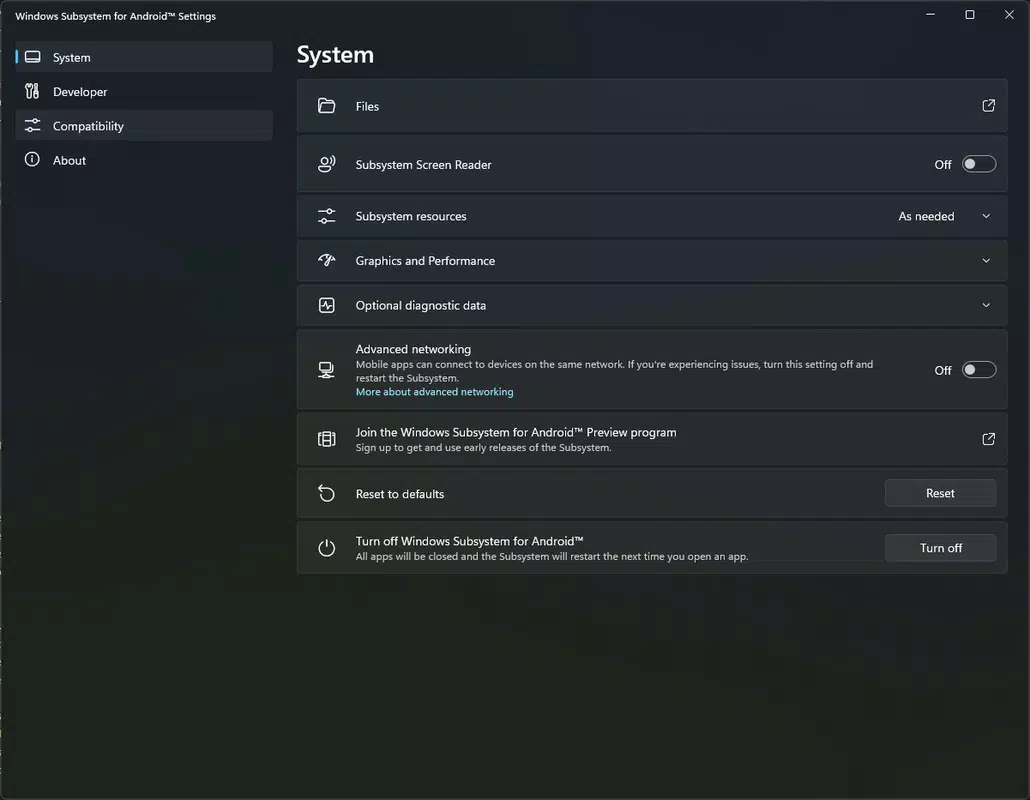
- Developer Mode and ADB Access – The system provides access to Android Debug Bridge (ADB), allowing advanced users to manage app installations, debug issues, and customize the Android environment.
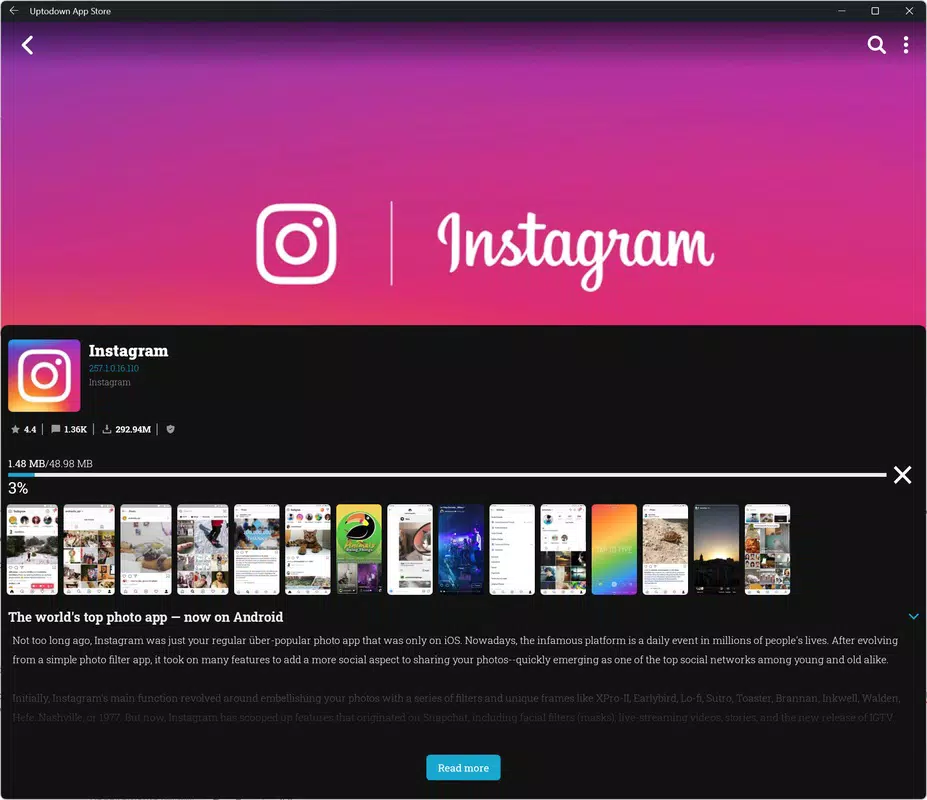
For example, a user can sideload the Uptodown App Store by creating a batch file with ADB commands to push the APK to the WSA instance. Once installed, the store appears as a native app, enabling users to browse and install thousands of Android applications. This functionality is particularly useful for accessing niche or region-locked apps not available on the Amazon App Store.
Interface, UX & Performance
Windows Subsystem for Android presents a clean, minimal interface that integrates smoothly with the Windows 11 desktop environment. Apps launched through WSA appear as standard windows, with resizable frames and access to system-wide features such as clipboard sharing, file drag-and-drop, and multitasking. Navigation is intuitive, with apps organized in a familiar app launcher style, and the system supports touch, mouse, and keyboard input seamlessly.
Although the developer did not list formal performance metrics, WSA is designed to operate efficiently within the Windows 11 ecosystem, leveraging hardware acceleration and system-level optimizations. The interface remains responsive across different device categories, including laptops, desktops, and hybrid devices. Stability is maintained through regular updates and integration with Windows Update, ensuring consistent operation over time.
Users report smooth performance for lightweight apps and moderate to high performance for games and productivity tools. The system manages memory and CPU usage effectively, minimizing impact on overall system performance. However, specific requirements for optimal operation were not disclosed, and performance may vary based on hardware configuration and background processes.
Platform Compatibility & Technical Requirements
Windows Subsystem for Android is available exclusively on Windows 11, requiring the operating system to be updated to the latest version for full functionality. The app has a file size of 2.5 GB, which reflects the inclusion of the Android runtime, system libraries, and core services.
The developer did not specify minimum OS requirements beyond the platform designation. Compatibility information was not fully disclosed, and users are advised to ensure their system meets general Windows 11 requirements, including a 64-bit processor, 4 GB of RAM, and sufficient disk space. The app is not available on older Windows versions or other platforms such as macOS or Linux.
Pros and Cons
Pros
- Enables native execution of Android apps on Windows 11 without third-party emulators.
- Supports sideloading and installation of alternative app stores like Uptodown.
- Provides access to a wide variety of Android apps, including games and social platforms.
- Offers developer tools such as ADB and developer mode for advanced customization.
- Free to download and install, with no in-app purchases or subscription fees.
Cons
- Requires technical knowledge to sideload non-official app stores.
- Some apps may not function optimally due to missing Android system services.
- Compatibility with certain apps is inconsistent and may require troubleshooting.
- Performance may vary depending on hardware specifications and background processes.
- Official support is limited to Windows 11, excluding older or alternative operating systems.
FAQ
Is Windows Subsystem for Android free to use?
Yes, the app is available at no cost. Users can download and install it without any subscription or in-app purchase requirements.
Can I install apps from sources other than the Amazon App Store?
Yes, users can sideload alternative app stores such as Uptodown by enabling developer mode and using ADB commands to install APK files.
What do I need to sideload apps on WSA?
To sideload apps, you need to install Android SDK Platform-Tools, enable developer mode in WSA settings, and use ADB commands to push APKs to the system.
Is WSA available on Windows 10?
Currently, WSA is only supported on Windows 11. It is not available on Windows 10 or other operating systems.
How do I update Windows Subsystem for Android?
Updates are delivered through Windows Update. Ensure your system is up to date to receive the latest version of WSA.
Final Thoughts
Windows Subsystem for Android represents a significant leap forward in cross-platform integration, offering Windows 11 users unprecedented access to Android applications. Its ability to run apps natively, support sideloading, and integrate with developer tools makes it a powerful utility for both casual users and technical professionals. While it requires some setup for advanced features, the benefits far outweigh the learning curve.
Whether you're a developer testing mobile apps, a gamer seeking Android-exclusive titles, or a productivity user needing mobile tools, WSA expands the capabilities of your Windows 11 device. The combination of performance, flexibility, and free access positions it as a must-have tool in the modern digital workspace.
Download Windows Subsystem for Android now


